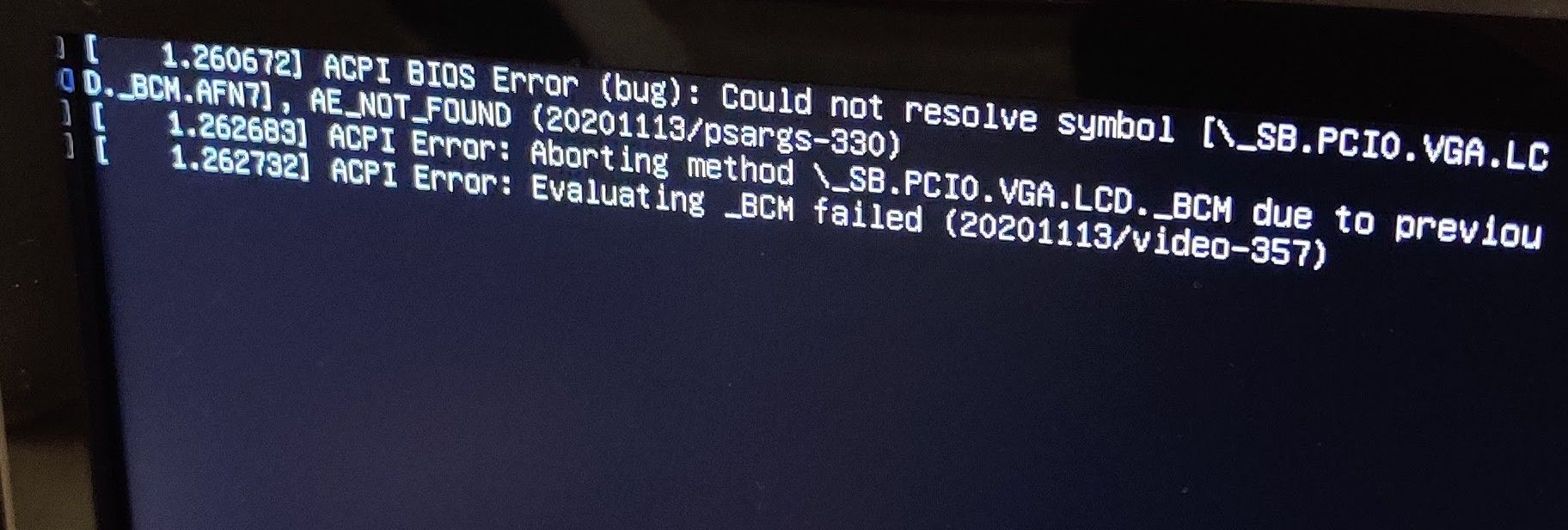
Arch Server Progress
-
So, I know that AI is being used for all sorts of nefarious things out this world, but I also believe there are more people using AI for good that for bad things. One such case in point, I just used Chatgpt to write a bash script so I can check to make sure services are running. And let me tell you, it did a beautiful job!
I wrote out the following prompt:
Write a bash script for Arch linux to check if the following services are running:

nginx
php-fpm
mariadb
postfix
dovecot

For each of the checks, display in the terminal if they are running or stopped
I am sure there are others ways to do this, but it looks like it took it’s queue on my “For each of” and wrote a for each statement. In the prompt in Chatgpt none of the wording is bolded or colored in blue. Which is perfectly fine. I added Redis and UFW to the code in my script file to make sure those are running as well.
Then Chatgpt told me to make the script executable using
chmod +x check_services.shand to double check to make sure that it chose the correct service names and to usesystemctl list-units --type=serviceto get the exact names of the services and change accordingly.So I did that and everything checks out. Then, Chatgpt prompted me and said if you would like to make this color coded let me know. So I did the following prompt:
This work perfectly. Please include color-coded outputThis was the final code that Chatgpt outputed:
#!/bin/bash

# Colors
GREEN="\033[0;32m"
RED="\033[0;31m"
NC="\033[0m"  # No Color

# List of services to check
services=(
  nginx
  php-fpm
  mariadb
  postfix
  dovecot
  redis
  ufw
)

echo "Checking service statuses..."

# Loop through each service
for service in "${services[@]}"; do
  status=$(systemctl is-active "$service")
  if [[ "$status" == "active" ]]; then
    echo -e "${service}: ${GREEN}Running ✅${NC}"
  else
    echo -e "${service}: ${RED}Stopped ❌${NC}"
  fi
done
So upon running this in the terminal when remoted into the server
./checkservicesI get the following output:
I am happy with the results and now have a super easy way to double check and make sure all of the services are running after I reboot the server when a new kernel is installed.
-
So, I know that AI is being used for all sorts of nefarious things out this world, but I also believe there are more people using AI for good that for bad things. One such case in point, I just used Chatgpt to write a bash script so I can check to make sure services are running. And let me tell you, it did a beautiful job!
I wrote out the following prompt:
Write a bash script for Arch linux to check if the following services are running:

nginx
php-fpm
mariadb
postfix
dovecot

For each of the checks, display in the terminal if they are running or stopped
I am sure there are others ways to do this, but it looks like it took it’s queue on my “For each of” and wrote a for each statement. In the prompt in Chatgpt none of the wording is bolded or colored in blue. Which is perfectly fine. I added Redis and UFW to the code in my script file to make sure those are running as well.
Then Chatgpt told me to make the script executable using
chmod +x check_services.shand to double check to make sure that it chose the correct service names and to usesystemctl list-units --type=serviceto get the exact names of the services and change accordingly.So I did that and everything checks out. Then, Chatgpt prompted me and said if you would like to make this color coded let me know. So I did the following prompt:
This work perfectly. Please include color-coded outputThis was the final code that Chatgpt outputed:
#!/bin/bash

# Colors
GREEN="\033[0;32m"
RED="\033[0;31m"
NC="\033[0m"  # No Color

# List of services to check
services=(
  nginx
  php-fpm
  mariadb
  postfix
  dovecot
  redis
  ufw
)

echo "Checking service statuses..."

# Loop through each service
for service in "${services[@]}"; do
  status=$(systemctl is-active "$service")
  if [[ "$status" == "active" ]]; then
    echo -e "${service}: ${GREEN}Running ✅${NC}"
  else
    echo -e "${service}: ${RED}Stopped ❌${NC}"
  fi
done
So upon running this in the terminal when remoted into the server
./checkservicesI get the following output:I am happy with the results and now have a super easy way to double check and make sure all of the services are running after I reboot the server when a new kernel is installed.
@Madchatthew Yes, ChatGPT excels in this sense, and does take queues from key items you describe, which sets it apart from others. I actually have a monthly paid subscription to ChatGPT because I use it more frequently these days for something else I have in the pipeline I’m working on.
Mark Cutting also advises organisations as a Fractional CIO, Fractional CISO and Executive Advisor, helping boards improve technology governance, cyber resilience and executive decision making. Learn more at Gratmore Ltd
-
@Madchatthew Yes, ChatGPT excels in this sense, and does take queues from key items you describe, which sets it apart from others. I actually have a monthly paid subscription to ChatGPT because I use it more frequently these days for something else I have in the pipeline I’m working on.
@phenomlab That is awesome! I think I am going to start using Chatgpt to help with some programming and if nothing else, it should be able to help me understand how to program some things or rather aspects of an app whether web or otherwise.
-
One of the package install options is the AUR. These are programs that can’t be installed using pacman, and are apps that can be installed. Usually the options are to install
yayorparu. I am one that doesn’t like extra programs on their computer if I don’t need it. It is another app that can have issues on an upgrade. Of course there is no doubt that typingsudo yay -S google-chromeis way easier and quicker.So how do you install from aur.archlinux.org with either of those apps. Easy, lets go through it step by step.
-
Go to the website
aur.archlinux.org -
We will use google-chrome for an example. I use chrome off the AUR so that I can log in and have all my bookmarks and extensions sync.
-
On the page for google-chrome on the AUR there will be a link next to
Git Clone URL:. -
Click on the link, which is read only to copy the link.

-
Go to your terminal and type
cd Download- this changes to the Download directory. -
Type
git clone 'right click and paste here'the link that you clicked on to copy. -
Press Enter and now the contents will be downloaded.
-
Change directory to the new one that appears, which in this case would be
google-chrome -
Once in this directory, now type
makepkg -s -iand it will install after updating packages and compiling. The -s will install missing dependencies and -i will tell makepkg to install after a successful build.
So now that you have been using good chrome and it says to restart to install the latest update and you do that, but no updates install. That is where you would need to type
sudo yay -U google-chrometo upgrade. Or I prefer to do the following.-
Go to the Downloads folder then to the program folder that you want to update in the terminal. In this case
Downloads/google-chrome -
Type
git pull -
Type
makepkg -s -iafter git is done pulling down the updates. -
Go through the install process after a successful build.
You will need to put in your password a couple of times and that is normal. Hope this helps and thank you!
-
-
One of the package install options is the AUR. These are programs that can’t be installed using pacman, and are apps that can be installed. Usually the options are to install
yayorparu. I am one that doesn’t like extra programs on their computer if I don’t need it. It is another app that can have issues on an upgrade. Of course there is no doubt that typingsudo yay -S google-chromeis way easier and quicker.So how do you install from aur.archlinux.org with either of those apps. Easy, lets go through it step by step.
-
Go to the website
aur.archlinux.org -
We will use google-chrome for an example. I use chrome off the AUR so that I can log in and have all my bookmarks and extensions sync.
-
On the page for google-chrome on the AUR there will be a link next to
Git Clone URL:. -
Click on the link, which is read only to copy the link.
-
Go to your terminal and type
cd Download- this changes to the Download directory. -
Type
git clone 'right click and paste here'the link that you clicked on to copy. -
Press Enter and now the contents will be downloaded.
-
Change directory to the new one that appears, which in this case would be
google-chrome -
Once in this directory, now type
makepkg -s -iand it will install after updating packages and compiling. The -s will install missing dependencies and -i will tell makepkg to install after a successful build.
So now that you have been using good chrome and it says to restart to install the latest update and you do that, but no updates install. That is where you would need to type
sudo yay -U google-chrometo upgrade. Or I prefer to do the following.-
Go to the Downloads folder then to the program folder that you want to update in the terminal. In this case
Downloads/google-chrome -
Type
git pull -
Type
makepkg -s -iafter git is done pulling down the updates. -
Go through the install process after a successful build.
You will need to put in your password a couple of times and that is normal. Hope this helps and thank you!
@Madchatthew Another great guide - thanks.
Mark Cutting also advises organisations as a Fractional CIO, Fractional CISO and Executive Advisor, helping boards improve technology governance, cyber resilience and executive decision making. Learn more at Gratmore Ltd
-
-
@Madchatthew Another great guide - thanks.
@phenomlab Thank you! And you are welcome! I had struggled with this the first couple times that google chrome had an update. Then I finally got it that I have to do that each time and that it isn’t done automatically.
-
@phenomlab Thank you! And you are welcome! I had struggled with this the first couple times that google chrome had an update. Then I finally got it that I have to do that each time and that it isn’t done automatically.
@Madchatthew This is one of the things that I always loathe about unmaintained repositories. They are so easily abandoned these days and it’s often not until the months have gone by where you realise your browser is woefully out of date because the repository no longer has anyone lovingly updating it.
Mark Cutting also advises organisations as a Fractional CIO, Fractional CISO and Executive Advisor, helping boards improve technology governance, cyber resilience and executive decision making. Learn more at Gratmore Ltd
-
@Madchatthew This is one of the things that I always loathe about unmaintained repositories. They are so easily abandoned these days and it’s often not until the months have gone by where you realise your browser is woefully out of date because the repository no longer has anyone lovingly updating it.
@phenomlab Yeah I am with you there. If they stop maintaining the google chrome one I will have to import my bookmarks and stuff into a different one and switch. I hoping they don’t stop maintaining it though.
Now some software once it is installed will have an update feature so you don’t have to do that every time, but unfortunately, the google chrome one doesn’t.
-
@phenomlab Yeah I am with you there. If they stop maintaining the google chrome one I will have to import my bookmarks and stuff into a different one and switch. I hoping they don’t stop maintaining it though.
Now some software once it is installed will have an update feature so you don’t have to do that every time, but unfortunately, the google chrome one doesn’t.
@Madchatthew said in Arch Server Progress:
Now some software once it is installed will have an update feature so you don’t have to do that every time, but unfortunately, the google chrome one doesn’t.
Yes, that was always the case with the Ubuntu repository for Chrome. PITA.
Mark Cutting also advises organisations as a Fractional CIO, Fractional CISO and Executive Advisor, helping boards improve technology governance, cyber resilience and executive decision making. Learn more at Gratmore Ltd
-
@Madchatthew said in Arch Server Progress:
Now some software once it is installed will have an update feature so you don’t have to do that every time, but unfortunately, the google chrome one doesn’t.
Yes, that was always the case with the Ubuntu repository for Chrome. PITA.
-
So I have to come on here and celebrate now! So I was ignoring the Dovecot upgrade in Pacman and decided that it was time to upgrade Dovecot. The only problem with that, is they revamped the whole thing and there are major breaking changes. I had version 2.3 and now am running version 2.4.
I have spent over 18 hours total getting all the config files setup properly and running. During this though I found that I had a couple of things setup the way I shouldn’t have and was able to modify them to be better. Now that I have the new Dovecot version setup, I can now look into getting some extra features to work with it, like better spam protection and quota amounts and some other things.
I am very happy and pleased with the result. I can email my gmail account and my wife’s gmail account and pretty much get the emails instantaneously on both sides. Now I can setup my website to be able to send mail when a purchase is made and that sort of thing.
I am stoked!
By the way, check out my webpage so far and let me know what you think. It is a wordpress website and I think I am going with SureCart for the store. I know the popular one to go with is WooCommerce, but most of the plugins that I need cost a lot of money to use. With SureCart I can do pretty much everything with it the way it is. I have to finagle a couple of things, but better than paying hundreds of dollars to use woocommerce the way I want. At least for now.
If anyone has any other recommendations that are free and open source ecommerce solutions let me know. I will check them out. So the website is https://graceunboundbindery.com
-
So I have to come on here and celebrate now! So I was ignoring the Dovecot upgrade in Pacman and decided that it was time to upgrade Dovecot. The only problem with that, is they revamped the whole thing and there are major breaking changes. I had version 2.3 and now am running version 2.4.
I have spent over 18 hours total getting all the config files setup properly and running. During this though I found that I had a couple of things setup the way I shouldn’t have and was able to modify them to be better. Now that I have the new Dovecot version setup, I can now look into getting some extra features to work with it, like better spam protection and quota amounts and some other things.
I am very happy and pleased with the result. I can email my gmail account and my wife’s gmail account and pretty much get the emails instantaneously on both sides. Now I can setup my website to be able to send mail when a purchase is made and that sort of thing.
I am stoked!
By the way, check out my webpage so far and let me know what you think. It is a wordpress website and I think I am going with SureCart for the store. I know the popular one to go with is WooCommerce, but most of the plugins that I need cost a lot of money to use. With SureCart I can do pretty much everything with it the way it is. I have to finagle a couple of things, but better than paying hundreds of dollars to use woocommerce the way I want. At least for now.
If anyone has any other recommendations that are free and open source ecommerce solutions let me know. I will check them out. So the website is https://graceunboundbindery.com
@Madchatthew Hey Chad. The website looks fantastic - so well laid out and a breeze to navigate. Out of curiosity, why did you choose to use a Gmail account to send mail from rather than the domain itself? In addition, one theme (which I use over at https://phenomlab.com) that I know for sure has WooCommerce built in (it is in fact a bundled plugin) is Impreza
https://themeforest.net/item/impreza-retina-responsive-wordpress-theme/6434280
The theme itself is $59.

Mark Cutting also advises organisations as a Fractional CIO, Fractional CISO and Executive Advisor, helping boards improve technology governance, cyber resilience and executive decision making. Learn more at Gratmore Ltd
-
@Madchatthew Hey Chad. The website looks fantastic - so well laid out and a breeze to navigate. Out of curiosity, why did you choose to use a Gmail account to send mail from rather than the domain itself? In addition, one theme (which I use over at https://phenomlab.com) that I know for sure has WooCommerce built in (it is in fact a bundled plugin) is Impreza
https://themeforest.net/item/impreza-retina-responsive-wordpress-theme/6434280
The theme itself is $59.
@phenomlab I just got the email server up and running and fuctioning properly this morning. I have been working on getting the other two sites working with email so I just haven’t been to my site yet to update the email. I was just using gmail as a temporary one. I also set that one up because the email server wasn’t running properly.
I will have to check this theme out. It would be nice to have the store function the way I want and not have workarounds to it. Make it look more professional then.
Thank you on the review, I really appreciate it!
I forgot to mention as well, that I was able to get the email server updated to use the latest security for passwords, which from my understanding is ARGON2ID. So that is nice as well.
-
@Madchatthew Hey Chad. The website looks fantastic - so well laid out and a breeze to navigate. Out of curiosity, why did you choose to use a Gmail account to send mail from rather than the domain itself? In addition, one theme (which I use over at https://phenomlab.com) that I know for sure has WooCommerce built in (it is in fact a bundled plugin) is Impreza
https://themeforest.net/item/impreza-retina-responsive-wordpress-theme/6434280
The theme itself is $59.
In addition, one theme (which I use over at https://phenomlab.com ) that I know for sure has WooCommerce built in (it is in fact a bundled plugin) is Impreza
Yeah, I love how your website looks and so fast! I am definitely going to check that out. Is that a one time fee or a yearly fee for $59?
-
In addition, one theme (which I use over at https://phenomlab.com ) that I know for sure has WooCommerce built in (it is in fact a bundled plugin) is Impreza
Yeah, I love how your website looks and so fast! I am definitely going to check that out. Is that a one time fee or a yearly fee for $59?
@Madchatthew One time fee, yes. You can purchase annual support, but I’ve never needed to.
Mark Cutting also advises organisations as a Fractional CIO, Fractional CISO and Executive Advisor, helping boards improve technology governance, cyber resilience and executive decision making. Learn more at Gratmore Ltd
-
@Madchatthew One time fee, yes. You can purchase annual support, but I’ve never needed to.
@phenomlab That is awesome! With that bundle, can you have add-ons that people can check that will only show up when they choose a specific product? Can you also have a terms and conditions popup before they check out and if they don’t check it it won’t let them checkout but will let them save their cart? Sorry for all the questions. I looked into some of those things and I would need to purchase a plugin that is over 100 dollars for the addons and the terms and conditions one cost money as well. So if those things are included in that bundle, then that is an amazing price for all of that.
-
@phenomlab That is awesome! With that bundle, can you have add-ons that people can check that will only show up when they choose a specific product? Can you also have a terms and conditions popup before they check out and if they don’t check it it won’t let them checkout but will let them save their cart? Sorry for all the questions. I looked into some of those things and I would need to purchase a plugin that is over 100 dollars for the addons and the terms and conditions one cost money as well. So if those things are included in that bundle, then that is an amazing price for all of that.
can you have add-ons that people can check that will only show up when they choose a specific product?
I think you can do this in WooCommerce, but not entirely sure to be honest.
Can you also have a terms and conditions popup before they check out and if they don’t check it it won’t let them checkout but will let them save their cart?
Yes, I think this is a WooCommerce setting.
You could also get creative with some JS to provide the functionality you are looking for.
Mark Cutting also advises organisations as a Fractional CIO, Fractional CISO and Executive Advisor, helping boards improve technology governance, cyber resilience and executive decision making. Learn more at Gratmore Ltd
-
can you have add-ons that people can check that will only show up when they choose a specific product?
I think you can do this in WooCommerce, but not entirely sure to be honest.
Can you also have a terms and conditions popup before they check out and if they don’t check it it won’t let them checkout but will let them save their cart?
Yes, I think this is a WooCommerce setting.
You could also get creative with some JS to provide the functionality you are looking for.
@phenomlab that is what I was thinking. I will have to do some research and bend it to my will LOL
-
So I switched back to woocommerce because there was some things that I wanted to change that I couldn’t in surecart. So I disabled that plug in and then I re-enabled the woocommerce plugin and started making my changes. I was able to get it so only the one product is seen. I will be adding more later. I have my add-ons added in as products and cross referenced I think the term was to the main product so when you add the main product to the cart those add-ons show up underneath it and you can click to add them to the cart if you want them. Evan was able to find a terms and agreement that did a pop up and a checkbox so you can check that you agree and it’s required before you can purchase anything. And then I found a deposit plugin because I require 50% upfront before they send their Bible to me and then the rest after I finish it and I can manually send out an invoice after that. So I got all of that working did some layout stuff with the cart and the checkout page. I also found a plug in so if you choose the add-on which is a bundle for laser engraving on the spine and the front cover with your name you have to go into the product and there’s a text box to enter your name exactly how you want it spelled on the Bible cover. The alternative to the bundle is just getting the laser engraving done on the spine, which I was able to look up some code so if either one of those get put into the cart it’s takes the other one out and then I used AI to help me refine the code so it’ll automatically detect if one or the other is in there and remove one or the other depending on which one you choose and such or if you change your mind.
I haven’t made it live yet. I will be going over it some more this weekend and working through the process and ironing out any last obvious bugs and such. Oh I also got set up to use PayPal to check out which with the PayPal plug-in you can do PayPal obviously, venmo, Apple pay and you can opt to pay with just the regular credit card or debit card or whatever. At some point I may activate the woocommerce check out but I will probably wait until I get a bank account for the business.
So yeah I am thinking next week I will be able to make this live and I can turn off the Google forms that I am using now. I am pretty excited about making this feature active. And it will be nicely automated because I won’t have to manually make quotes anymore, and everything will be right there and they can check out right away and know what they’re rebind is going to cost immediately and it should be more seamless from picking your custom rebind the colors the ribbons your add-ons and you can go to pay you do the 50% non-refundable deposit and it should be a lot more smooth and seamless I’m hoping.
I didn’t get that theme yet that comes with a bunch of woocommerce stuff. I’m working on breaking even at this point and once I do and get some money built up then I will think about it at that point. But this should work for now with what I have and it is all free pretty much except for paying for the domain name and hosting in that kind of thing.
-
So I switched back to woocommerce because there was some things that I wanted to change that I couldn’t in surecart. So I disabled that plug in and then I re-enabled the woocommerce plugin and started making my changes. I was able to get it so only the one product is seen. I will be adding more later. I have my add-ons added in as products and cross referenced I think the term was to the main product so when you add the main product to the cart those add-ons show up underneath it and you can click to add them to the cart if you want them. Evan was able to find a terms and agreement that did a pop up and a checkbox so you can check that you agree and it’s required before you can purchase anything. And then I found a deposit plugin because I require 50% upfront before they send their Bible to me and then the rest after I finish it and I can manually send out an invoice after that. So I got all of that working did some layout stuff with the cart and the checkout page. I also found a plug in so if you choose the add-on which is a bundle for laser engraving on the spine and the front cover with your name you have to go into the product and there’s a text box to enter your name exactly how you want it spelled on the Bible cover. The alternative to the bundle is just getting the laser engraving done on the spine, which I was able to look up some code so if either one of those get put into the cart it’s takes the other one out and then I used AI to help me refine the code so it’ll automatically detect if one or the other is in there and remove one or the other depending on which one you choose and such or if you change your mind.
I haven’t made it live yet. I will be going over it some more this weekend and working through the process and ironing out any last obvious bugs and such. Oh I also got set up to use PayPal to check out which with the PayPal plug-in you can do PayPal obviously, venmo, Apple pay and you can opt to pay with just the regular credit card or debit card or whatever. At some point I may activate the woocommerce check out but I will probably wait until I get a bank account for the business.
So yeah I am thinking next week I will be able to make this live and I can turn off the Google forms that I am using now. I am pretty excited about making this feature active. And it will be nicely automated because I won’t have to manually make quotes anymore, and everything will be right there and they can check out right away and know what they’re rebind is going to cost immediately and it should be more seamless from picking your custom rebind the colors the ribbons your add-ons and you can go to pay you do the 50% non-refundable deposit and it should be a lot more smooth and seamless I’m hoping.
I didn’t get that theme yet that comes with a bunch of woocommerce stuff. I’m working on breaking even at this point and once I do and get some money built up then I will think about it at that point. But this should work for now with what I have and it is all free pretty much except for paying for the domain name and hosting in that kind of thing.
@Madchatthew These are all smart moves, and it certainly looks like you’re headed in the right direction. Best of luck and I really hope this venture succeeds. It’s a niche market but has huge potential once word spreads around.
Building out the basic framework also makes sense before you take the plunge and invest heavier, which I myself would only do once the business starts to turn profit.
Mark Cutting also advises organisations as a Fractional CIO, Fractional CISO and Executive Advisor, helping boards improve technology governance, cyber resilience and executive decision making. Learn more at Gratmore Ltd


Hello! It looks like you're interested in this conversation, but you don't have an account yet.
Getting fed up of having to scroll through the same posts each visit? When you register for an account, you'll always come back to exactly where you were before, and choose to be notified of new replies (either via email, or push notification). You'll also be able to save bookmarks and upvote posts to show your appreciation to other community members.
With your input, this post could be even better 💗
Register LoginRelated Topics
-
-
-
-
-
-
-
nginx can't start again
Moved Solved Configure -