NodeBB: Favicon upload issue
-
Hi,
I am trying to load a 512x512px favicon to my NodeBB forum, but it doesn’t go past the below status:
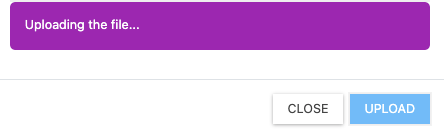
The above is a PNG file.Then, I attempted an upload with a 48x48 .ICO file and that loaded successfully. But it isn’t loading the image on the site though.
I’ve been reading a thread on NodeBB forum where someone had a similar issue.
How can I fix this issue? I had this issue in both V2 and now in the V3 versions. I have attempted reload and refresh a few times, but it isn’t helping.
-
I am back - I read the SSH documentation and looks like a “no, can’t do” for me, unless I get handheld training followed by a bit of practice, I don’t think I can do it. Unfortunately/fortunately, I will need to trouble you again for this cache clearance. (FYI - I have a list of coffees owed, and this one is in it)
@mventures Having taken a look at this, the
favicon.icofile is required in two places to work - one is in/public/uploads/systemand the other is inpublicat the root level - see below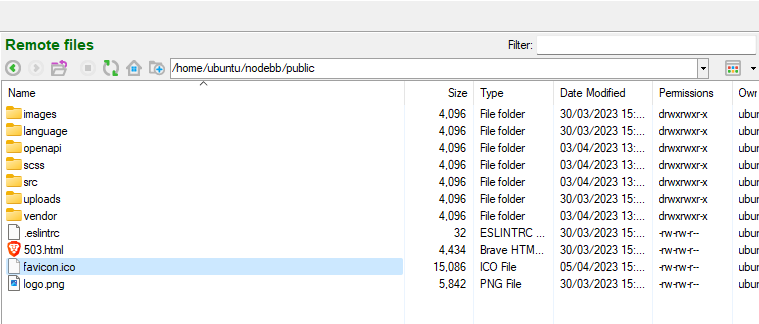
I’ve tested this against a favicon checker, and it now works - I used the one you uploaded for the touchicon to generate it.
Mark Cutting also advises organisations as a Fractional CIO, Fractional CISO and Executive Advisor, helping boards improve technology governance, cyber resilience and executive decision making. Learn more at Gratmore Ltd
-
Hi,
I am trying to load a 512x512px favicon to my NodeBB forum, but it doesn’t go past the below status:
The above is a PNG file.Then, I attempted an upload with a 48x48 .ICO file and that loaded successfully. But it isn’t loading the image on the site though.
I’ve been reading a thread on NodeBB forum where someone had a similar issue.
How can I fix this issue? I had this issue in both V2 and now in the V3 versions. I have attempted reload and refresh a few times, but it isn’t helping.
@mventures This issue is a common one, and likely because
nginxis caching the values it already has. The fastest wat to fix this would be to- Gain access via SSH to your server
- Login
- Issue command
sudo service nginx restartand press enter
This will cause
nginxto restart, and should also empty the cache. Then see if this resolves the issue.Mark Cutting also advises organisations as a Fractional CIO, Fractional CISO and Executive Advisor, helping boards improve technology governance, cyber resilience and executive decision making. Learn more at Gratmore Ltd
-
@mventures This issue is a common one, and likely because
nginxis caching the values it already has. The fastest wat to fix this would be to- Gain access via SSH to your server
- Login
- Issue command
sudo service nginx restartand press enter
This will cause
nginxto restart, and should also empty the cache. Then see if this resolves the issue.@phenomlab Would this route work as it seems simpler: Go to ACP > Advanced > Cache?
-
@phenomlab Would this route work as it seems simpler: Go to ACP > Advanced > Cache?
@mventures No. The
nginxserver it the web server itself. The ACP is the NodeBB application - they are completely seperated.Mark Cutting also advises organisations as a Fractional CIO, Fractional CISO and Executive Advisor, helping boards improve technology governance, cyber resilience and executive decision making. Learn more at Gratmore Ltd
-
@mventures No. The
nginxserver it the web server itself. The ACP is the NodeBB application - they are completely seperated.This post is deleted! -
@mventures No. The
nginxserver it the web server itself. The ACP is the NodeBB application - they are completely seperated.@phenomlab Oh my! Sounds scary again. I read this old post about SSH, and I am not so sure if I want to take any risks

https://sudonix.com/topic/391/secure-ssh-connectivty?_=1680516532796
-
I am back - I read the SSH documentation and looks like a “no, can’t do” for me, unless I get handheld training followed by a bit of practice, I don’t think I can do it. Unfortunately/fortunately, I will need to trouble you again for this cache clearance. (FYI - I have a list of coffees owed, and this one is in it)
-
I am back - I read the SSH documentation and looks like a “no, can’t do” for me, unless I get handheld training followed by a bit of practice, I don’t think I can do it. Unfortunately/fortunately, I will need to trouble you again for this cache clearance. (FYI - I have a list of coffees owed, and this one is in it)
@mventures Having taken a look at this, the
favicon.icofile is required in two places to work - one is in/public/uploads/systemand the other is inpublicat the root level - see belowI’ve tested this against a favicon checker, and it now works - I used the one you uploaded for the touchicon to generate it.
Mark Cutting also advises organisations as a Fractional CIO, Fractional CISO and Executive Advisor, helping boards improve technology governance, cyber resilience and executive decision making. Learn more at Gratmore Ltd
-
 undefined phenomlab has marked this topic as solved on
-
@mventures Having taken a look at this, the
favicon.icofile is required in two places to work - one is in/public/uploads/systemand the other is inpublicat the root level - see belowI’ve tested this against a favicon checker, and it now works - I used the one you uploaded for the touchicon to generate it.
Hey @phenomlab, Thanks for looking into this! Did you make the change?
Because I can still see the BB logo as the favicon on the desktop (safari, chrome) and the mobile.
But on an iPad, I can see my favicon. -
Hey @phenomlab, Thanks for looking into this! Did you make the change?
Because I can still see the BB logo as the favicon on the desktop (safari, chrome) and the mobile.
But on an iPad, I can see my favicon.I have the same problem. I never managed to solve it.
There is always a moment when I see that of NodeBB when I have nowhere on the server (nginx cache dump, cloudflare, nodebb, etc…)
PW and WS Spirit alive
-
I have the same problem. I never managed to solve it.
There is always a moment when I see that of NodeBB when I have nowhere on the server (nginx cache dump, cloudflare, nodebb, etc…)
@DownPW Yes, it can be sporadic, but in the case of @mventures it should be resolved.
For example, viewing the site in incognito mode
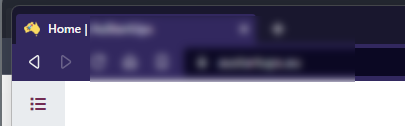
And also checking with several
favicontesters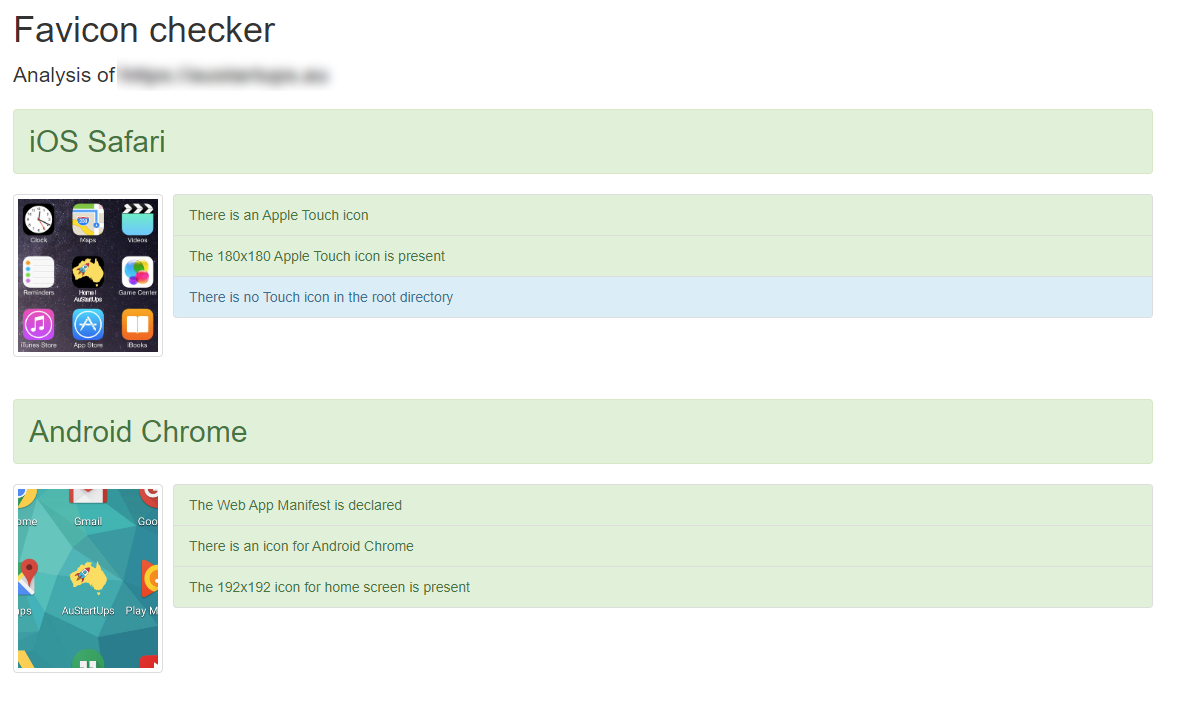
@mventures can you try with a browser you’ve never used before, or perhaps an incognito tab? If that doesn’t work, also try the below
- Open Google Chrome
- Navigate to the website
- Open the developer tools (press F12)
- Click and hold the browser reload button so that the advanced options appear
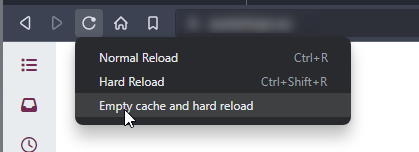
- Select the option to “Empty cache and hard reload”
Mark Cutting also advises organisations as a Fractional CIO, Fractional CISO and Executive Advisor, helping boards improve technology governance, cyber resilience and executive decision making. Learn more at Gratmore Ltd
-
@DownPW Yes, it can be sporadic, but in the case of @mventures it should be resolved.
For example, viewing the site in incognito mode
And also checking with several
favicontesters@mventures can you try with a browser you’ve never used before, or perhaps an incognito tab? If that doesn’t work, also try the below
- Open Google Chrome
- Navigate to the website
- Open the developer tools (press F12)
- Click and hold the browser reload button so that the advanced options appear
- Select the option to “Empty cache and hard reload”
@phenomlab I am on a Mac, so I used the “Option + Command + I”, and then performed the steps. It loaded my favicon! I checked on Firefox which I haven’t used before, and it showed my favicon also! That’s fantastic and thank you for the help!


Hello! It looks like you're interested in this conversation, but you don't have an account yet.
Getting fed up of having to scroll through the same posts each visit? When you register for an account, you'll always come back to exactly where you were before, and choose to be notified of new replies (either via email, or push notification). You'll also be able to save bookmarks and upvote posts to show your appreciation to other community members.
With your input, this post could be even better 💗
Register LoginDid this solution help you?
Related Topics
-
Nodebb and emails
Solved Configure -
-
-
restarting nodebb on boot
Unsolved Configure -
Podcast Share NodeBB
Solved Configure -
-
NodeBB metadata
Solved Configure -