[NODEBB] Help for my custom CSS
-
Hi,
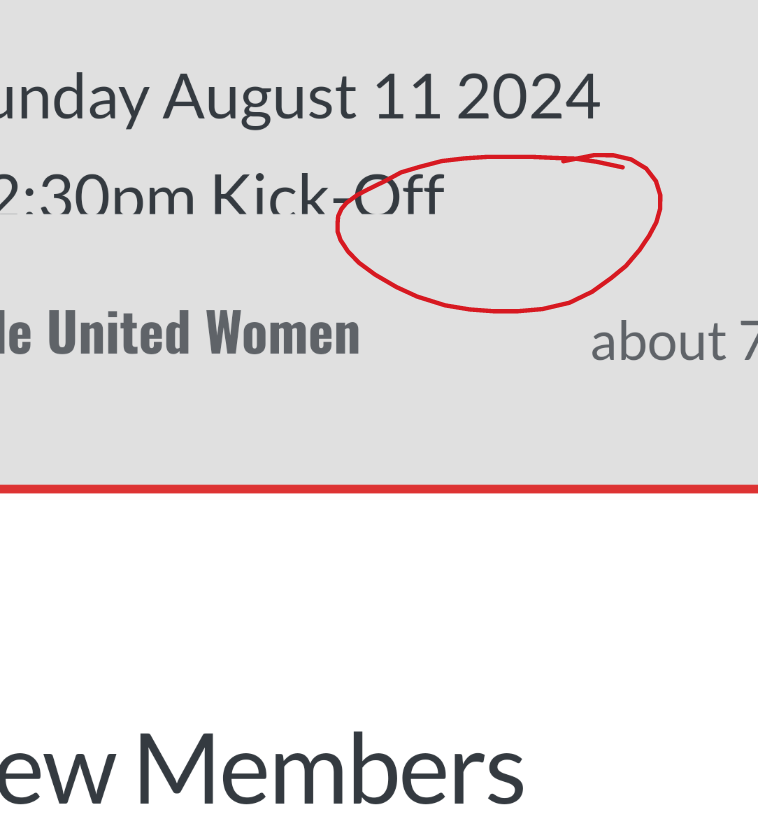
I’d like to enlarge the div so that the logo is fully displayed. Right now, for example, it’s cut off on the right at the glasses.

an idea ?
-
if I set :
- {
overflow: visible !important;
}
it’s OK.
I have not overflow: hidden in my custom css on acp…
Maybe because Fancybox add an <a> no ?

PW and WS Spirit alive
- {
-
if I set :
- {
overflow: visible !important;
}
it’s OK.
I have not overflow: hidden in my custom css on acp…
Maybe because Fancybox add an <a> no ?
@DownPW strange. Fancybox doesn’t actually alter the image as far as I recall.
Does it make a difference if you change the class name (in developer mode) from
fancyboxto say,fancybox1?If it works, then the class may have that defined already.
- {
-
@baris said:
You should change your selectors so it doesn’t look at the entire document. You probably only want to apply fancybox to stuff inside the
#contentelement which is what changes when the user navigates around the page. So use$('#content a')....for your selectors then the forum logo in the header won’t be selected.I modified the JS Fancybox code now and this code and it seem better

// ---------------------------------------------
// Fancybox Media Reader (Without Website Logo)
// ---------------------------------------------

if (top.location.pathname !== '/login') {
    $(window).on('action:posts.loaded', function(data) {
        console.log("Polling DOM for lazyLoaded images to apply Fancybox");
        $(document).ready(function() {
            $('#content a').not('.forum-logo').not(".avatar").not(".emoji").not(".bmac-noanimate").each(function() {
                $('#content a[href*=".jpg"], #content a[href*=".jpeg"], #content a[href*=".png"], #content a[href*=".gif"], #content a[href*=".webp"]').addClass("noanimate");
            });
        });
    });
}

if (top.location.pathname !== '/login') {
    $(document).ready(function() {
        $(window).on('action:ajaxify.end', function(data) {
            $('#content a').not('.logo').not(".avatar").not(".emoji").not(".bmac-noanimate").each(function() {
                $('#content a[href*=".jpg"], #content a[href*=".jpeg"], #content a[href*=".png"], #content a[href*=".gif"], #content a[href*=".webp"]').addClass("noanimate");
                data.preventDefault()
                // Strip out the images contained inside blockquotes as this looks nasty :)
                $('#content blockquote img').remove();
            });
            Fancybox.bind(
                '#content a[href*=".jpg"], #content a[href*=".jpeg"], #content a[href*=".png"], #content a[href*=".gif"], #content a[href*=".webp"]',
                {
                    groupAll: true,
                }
            );
        });
    });
}

// Chat fancybox - fires when chat module loaded and AJAX calls new chat
$(document).ready(function() {
    $(window).on('action:chat.loaded', function(data) {
        // >>> Se limiter au contenu principal uniquement <<<
        $('#content img').not('.forum-logo').not(".avatar").not(".emoji").not(".bmac-noanimate").each(function() {
            var newHref = $(this).attr("src");
            $(this).wrap("<a class='fancybox' href='" + newHref + "'/>");
            $('#content a[href*=".jpg"], #content a[href*=".jpeg"], #content a[href*=".png"], #content a[href*=".gif"], #content a[href*=".webp"]').addClass("noanimate");
            data.preventDefault();
            // Strip out the images contained inside blockquotes as this looks nasty :)
            $('#content blockquote img').remove();
        });
        Fancybox.bind(
            '#content a[href*=".jpg"], #content a[href*=".jpeg"], #content a[href*=".png"], #content a[href*=".gif"], #content a[href*=".webp"]',
            {
                groupAll: true,
            }
        );
    });
});
For the logo, I must use
overflow: visible !important;on[component="brand/logo"]/* --- Logo --- */ [component="brand/logo"] { max-height: 50px; width: auto; height: auto; max-width: 100%; display: block; object-fit: contain; object-position: left center; overflow: visible !important; }Better result !!
-
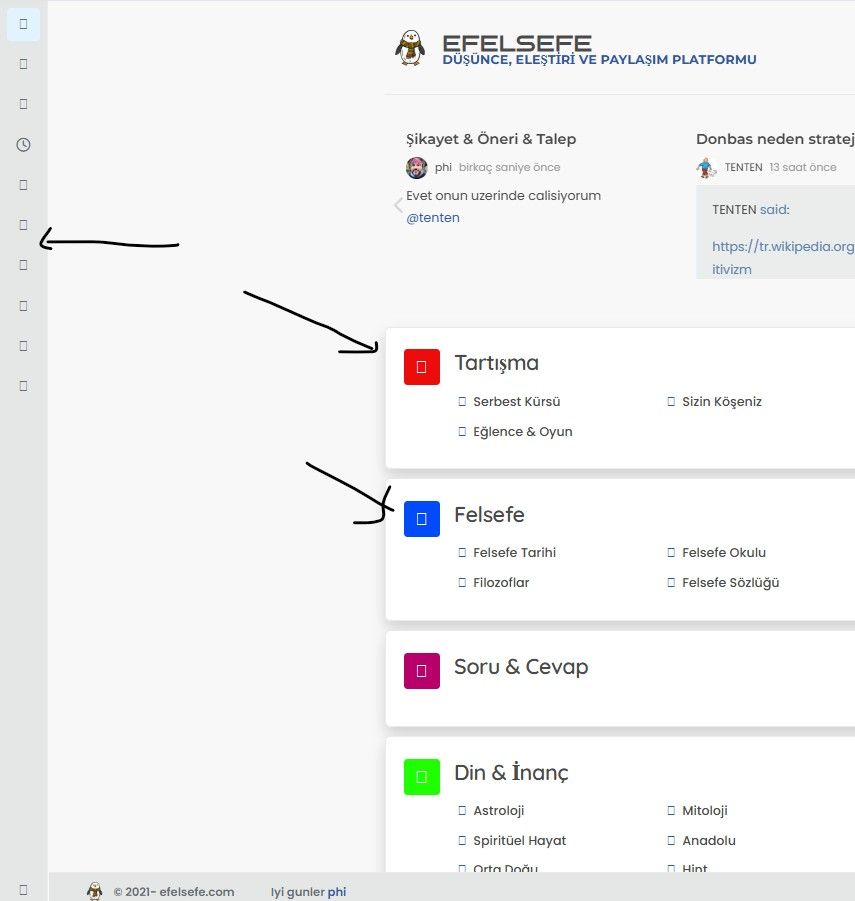
Since the latest update, all my icons have disappeared. Could you please advise how to restore them?
-
You use custom version of Font Awesome ?
-
-
yes @downpw
So is taht the problem.
The core migrated to FA6 and no longer automatically includes the compatibility layers. Theall.cssalone is no longer enough because it only loads icons in native FA6 syntax (fa-solid,fa-regular, etc.). Your old icons using FA4 syntax (fa fa-something) are no longer recognized without the shims.Hence the need for the three files:
all.css: the FA6 icons themselvesv4-shims.css: the mapping table that remaps the old FA4 names to their FA6 equivalents (many icons were renamed between FA4 and FA6)v4-font-face.css: redeclares the FontAwesome@font-facewith the old family names (FontAwesomeinstead of"Font Awesome 6 Pro"), so CSS selectors targeting the oldfont-familykeep resolving
So if your customs still use FA4 syntax, all three are required.
I load my Custom FA like this in my ACP/Headers :
<link href="/assets/customfonts/FontAwesome.Pro.6.x.x/css/all.css" rel="stylesheet" /> <link href="/assets/customfonts/FontAwesome.Pro.6.x.x/css/v4-shims.css" rel="stylesheet" /> <link href="/assets/customfonts/FontAwesome.Pro.6.x.x/css/v4-font-face.css" rel="stylesheet" /> -
how i create those folders. i added ACP/HEADERS the codes but not working.
-
-
You need to load your Font Awesome CSS files by adjusting this code to the path where you saved them.
But honestly, I don’t know how you’ve configured your site in this regard.
-
<meta http-equiv=“Content-Type” content=“text/html; charset=utf-8” />
<link href=“/assets/fonts/fonts.min.css?version=1” rel=“stylesheet”>
<link href=“/assets/customfonts/FontAwesome.Pro.6.x.x/css/all.css” rel=“stylesheet” />
<link href=“/assets/customfonts/FontAwesome.Pro.6.x.x/css/v4-shims.css” rel=“stylesheet” />
<link href=“/assets/customfonts/FontAwesome.Pro.6.x.x/css/v4-font-face.css” rel=“stylesheet” />
<script src=“https://cdn.jsdelivr.net/npm/@fancyapps/ui@5.0/dist/fancybox/fancybox.umd.js”></script>
<link rel=“stylesheet” href=“https://cdn.jsdelivr.net/npm/@fancyapps/ui@5.0/dist/fancybox/fancybox.css”/>
<a id=“pageUp” class=“”><i class=“fas fa-chevron-up”></i></a>
<div id=“readingposition” class=“reading-meter” style=“bottom: 0px;”>
<div class=“reading-meter-background rounded-1 border border-gray-300 ready”>
<div class=“reading-meter-progress-bar rounded-1” id=“progress-bar”>
</div>
</div>
</div>what i have now
-
<meta http-equiv=“Content-Type” content=“text/html; charset=utf-8” />
<link href=“/assets/fonts/fonts.min.css?version=1” rel=“stylesheet”>
<link href=“/assets/customfonts/FontAwesome.Pro.6.x.x/css/all.css” rel=“stylesheet” />
<link href=“/assets/customfonts/FontAwesome.Pro.6.x.x/css/v4-shims.css” rel=“stylesheet” />
<link href=“/assets/customfonts/FontAwesome.Pro.6.x.x/css/v4-font-face.css” rel=“stylesheet” />
<script src=“https://cdn.jsdelivr.net/npm/@fancyapps/ui@5.0/dist/fancybox/fancybox.umd.js”></script>
<link rel=“stylesheet” href=“https://cdn.jsdelivr.net/npm/@fancyapps/ui@5.0/dist/fancybox/fancybox.css”/>
<a id=“pageUp” class=“”><i class=“fas fa-chevron-up”></i></a>
<div id=“readingposition” class=“reading-meter” style=“bottom: 0px;”>
<div class=“reading-meter-background rounded-1 border border-gray-300 ready”>
<div class=“reading-meter-progress-bar rounded-1” id=“progress-bar”>
</div>
</div>
</div>what i have now
@cagatay if you look in the console (developers console in browser) do you see any error messages being returned?
Linux is case sensitive, and it’s possible to have the same filename and folder name in upper and lower case.
I suspect this might be the issue, but I could be wrong.
-
Mark, the situation is that since I used your CSS files, I don’t even have the Frontawese folder. Because of that, I really need your direct help. I’d really appreciate it if you could take a look whenever you have some free time.
-
Hi Mark, hope you’re doing well. Are you going to be able to help me with this?
-
@cagatay Just looking at this now. Do you have a FA Pro 6 license, or are you trying to use the free version? It’s not immediately clear, and the directory structure on your server is a mess to be honest. Not sure what has happened here.
EDIT - I have it working. DM me.
Mark Cutting also advises organisations as a Fractional CIO, Fractional CISO and Executive Advisor, helping boards improve technology governance, cyber resilience and executive decision making. Learn more at Gratmore Ltd
-
thank you Mark.
-
-
i do not know
Mark resolved. -
so what is the problem of @cagatay mark @phenomlab ?
@DownPW the FA library was missing with no paths defined. I’ve set these in the headers and uploaded the source, including necessary shim files which resolves the issue.




Hello! It looks like you're interested in this conversation, but you don't have an account yet.
Getting fed up of having to scroll through the same posts each visit? When you register for an account, you'll always come back to exactly where you were before, and choose to be notified of new replies (either via email, or push notification). You'll also be able to save bookmarks and upvote posts to show your appreciation to other community members.
With your input, this post could be even better 💗
Register Login