Environment Variables
-
Hello and thank you in advance for your help.
I am running a Digital Ocean Droplet with Ubuntu Server 20.04. I have Virtualmin, Webmin and the package for that setup. I have the same setup for a dev platform that I test before making update live on the production server. I am also using pm2 to run my node applications with a proxy website under the domain in virtualmin pointing to http://127.0.0.1:PORT.I am having trouble on where to put environment variables.
I have tried this location and the variables just don’t work. In my node app I am using process.env.VARIABLE.
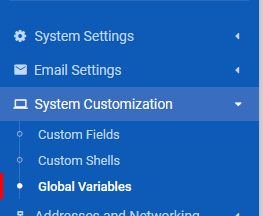
I have also put variables in /etc/environment and have created a sh file with the variables in /etc/profile.d folder.
I am not sure what I am doing wrong or if I need to be adding these variables in a totally different spot. I have done hours of research on the internet. The current solution that I have somewhat working is putting the variables in both /etc/environment and /etc/profile.d/myvariables.sh.
In /etc/environment I am using the following format:
VARIABLE_NAME=whatiwantthevaluetobeIn the myvariables.sh I am using the format below:
export VARIABLE_NAME=whatiwantthevauletobeI am lost and need some help getting back on the path and the proper way to make this work. Let me know if you need any other info and thanks again for the help.
-
@madchatthew I’ve had some instances in the past where any environmental variables I set wouldn’t take without a restart.
Long shot, but worth a try.
@phenomlab So I found that I had to delete the pm2 instance of my node app and then add it again. I wasn’t able to tell if I had to logout and log back in first. I rebooted the server and then it continued to work. I shut down the server over night and restarted it just now and everything seems to be back up and running.
Thank you everyone, I think I finally understand how to make environment variables work. It is nice because other logins shouldn’t have access to variables from other apps. That will help to keep things secured a little better than just having global environment variables. If I am understanding that wrong, please let me know.
Thank again!
-
Hello and thank you in advance for your help.
I am running a Digital Ocean Droplet with Ubuntu Server 20.04. I have Virtualmin, Webmin and the package for that setup. I have the same setup for a dev platform that I test before making update live on the production server. I am also using pm2 to run my node applications with a proxy website under the domain in virtualmin pointing to http://127.0.0.1:PORT.I am having trouble on where to put environment variables.
I have tried this location and the variables just don’t work. In my node app I am using process.env.VARIABLE.
I have also put variables in /etc/environment and have created a sh file with the variables in /etc/profile.d folder.
I am not sure what I am doing wrong or if I need to be adding these variables in a totally different spot. I have done hours of research on the internet. The current solution that I have somewhat working is putting the variables in both /etc/environment and /etc/profile.d/myvariables.sh.
In /etc/environment I am using the following format:
VARIABLE_NAME=whatiwantthevaluetobeIn the myvariables.sh I am using the format below:
export VARIABLE_NAME=whatiwantthevauletobeI am lost and need some help getting back on the path and the proper way to make this work. Let me know if you need any other info and thanks again for the help.
@madchatthew Generally speaking one sets environment variables for various users/environments in their login/profiles. For e.g., a nodebb instance running as user nodebb, and presuming a bash shell, then add those env vars to either .profile or .bash_profile in the user’s home dir, e.g.;
FOO='totally awesome bar!''
export FOO
Depending on your shell you may be able to combine those into a single line.
But I do not really know. If using systemd to start the app then maybe the service file is the place to be doing this?
Just a couple ideas since nobody has yet responded. You’ll get better. Be patient.
Opinionated two bit opinions are my own. Caveat emptor, eh?
-
@madchatthew Generally speaking one sets environment variables for various users/environments in their login/profiles. For e.g., a nodebb instance running as user nodebb, and presuming a bash shell, then add those env vars to either .profile or .bash_profile in the user’s home dir, e.g.;
FOO='totally awesome bar!''
export FOO
Depending on your shell you may be able to combine those into a single line.
But I do not really know. If using systemd to start the app then maybe the service file is the place to be doing this?
Just a couple ideas since nobody has yet responded. You’ll get better. Be patient.
@gotwf Thank you for your response. I will give that a try and see if it makes a difference. I will let you know what I find out. This is something I need to know because it will affect how things are setup for other apps on the server.
Thank you again, I will let you know what I find out.
-
So the solution was to create a .bash_profile and place all of my variables in that file. Then I just had to make sure to export each variable just like in the example from @gotwf post. Thank you @gotwf for your input. I am confident I can replicate this over to my production server now and make everything run the way it should.
-
Well I take that back, the one app is working but my other app isn’t working. I will have to dig deeper into this and try to figure out why that is. So weird.
-
Well I take that back, the one app is working but my other app isn’t working. I will have to dig deeper into this and try to figure out why that is. So weird.
@madchatthew I’ve had some instances in the past where any environmental variables I set wouldn’t take without a restart.
Long shot, but worth a try.
Mark Cutting also advises organisations as a Fractional CIO, Fractional CISO and Executive Advisor, helping boards improve technology governance, cyber resilience and executive decision making. Learn more at Gratmore Ltd
-
@madchatthew I’ve had some instances in the past where any environmental variables I set wouldn’t take without a restart.
Long shot, but worth a try.
@phenomlab So I found that I had to delete the pm2 instance of my node app and then add it again. I wasn’t able to tell if I had to logout and log back in first. I rebooted the server and then it continued to work. I shut down the server over night and restarted it just now and everything seems to be back up and running.
Thank you everyone, I think I finally understand how to make environment variables work. It is nice because other logins shouldn’t have access to variables from other apps. That will help to keep things secured a little better than just having global environment variables. If I am understanding that wrong, please let me know.
Thank again!
-
@phenomlab So I found that I had to delete the pm2 instance of my node app and then add it again. I wasn’t able to tell if I had to logout and log back in first. I rebooted the server and then it continued to work. I shut down the server over night and restarted it just now and everything seems to be back up and running.
Thank you everyone, I think I finally understand how to make environment variables work. It is nice because other logins shouldn’t have access to variables from other apps. That will help to keep things secured a little better than just having global environment variables. If I am understanding that wrong, please let me know.
Thank again!
@madchatthew great you got this to work ! Thanks for the update.
-
 undefined phenomlab has marked this topic as solved on


Hello! It looks like you're interested in this conversation, but you don't have an account yet.
Getting fed up of having to scroll through the same posts each visit? When you register for an account, you'll always come back to exactly where you were before, and choose to be notified of new replies (either via email, or push notification). You'll also be able to save bookmarks and upvote posts to show your appreciation to other community members.
With your input, this post could be even better 💗
Register Login